Postmanでポチポチ手動確認していたAPIテストを、Newmanに載せ替えてCIで回すようにしてから運用が一気に楽になりました。環境変数の切り替えでつまずいたポイントも含めて共有します。
コレクション設計の原則
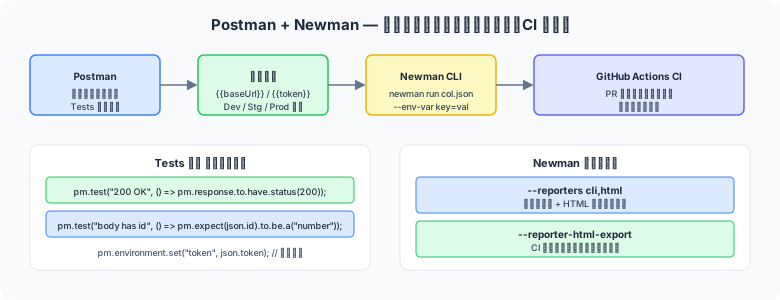
図1: Postman/Newmanのコレクション設計とCI連携
API テストを維持しやすくするためのコレクション構成です。
| レベル | 粒度の例 | 目的 |
|---|---|---|
| コレクション | User API・Order API | サービス単位でまとめる |
| フォルダ | ユーザー作成 / 取得 / 更新 / 削除 | エンドポイント種別で整理 |
| リクエスト | 正常系・異常系(400 / 401 / 404) | 1リクエスト = 1検証シナリオ |
ℹ️ コレクション実行順序はフォルダの並び順
コレクションランナーはフォルダ・リクエストを上から順に実行します。「ユーザー作成 → 取得 → 更新 → 削除」のように CRUD 順に並べると依存関係が明確になります。
Tests タブのスクリプト基礎
Postman の Tests タブは JavaScript(Chai アサーションライブラリ)で記述します。
// ── ステータスコードの検証 ──
pm.test("ステータスコードが 200", () => {
    pm.response.to.have.status(200);
});

// ── レスポンスボディ(JSON)の検証 ──
pm.test("ユーザー名が返る", () => {
    const body = pm.response.json();
    pm.expect(body.name).to.equal("山田太郎");
    pm.expect(body.email).to.match(/@example\.com$/);
});

// ── レスポンスヘッダーの検証 ──
pm.test("Content-Type が application/json", () => {
    pm.expect(pm.response.headers.get("Content-Type"))
        .to.include("application/json");
});

// ── レスポンスタイムの検証(SLA チェック)──
pm.test("レスポンスが 500ms 以内", () => {
    pm.expect(pm.response.responseTime).to.be.below(500);
});

// ── スキーマ検証(JSON Schema) ──
const schema = {
    type: "object",
    required: ["id", "name", "email"],
    properties: {
        id:    { type: "string" },
        name:  { type: "string" },
        email: { type: "string", format: "email" }
    }
};
pm.test("レスポンスが JSON Schema に適合", () => {
    pm.response.to.have.jsonSchema(schema);
});
レスポンス値の連鎖(変数への保存)
「ユーザー作成 → 作成した ID で取得」のように、前のリクエストの結果を次のリクエストで使う場合は環境変数に値を保存します。
// POST /users の Tests タブ
// 作成されたユーザー ID を次のリクエストで使うために保存
pm.test("ユーザーが作成される", () => {
    pm.response.to.have.status(201);
    const body = pm.response.json();
    pm.expect(body.id).to.be.a("string");

    // 環境変数に保存(次リクエストから {{userId}} で参照可能)
    pm.environment.set("userId", body.id);
    pm.environment.set("createdAt", body.createdAt);
});

// ─────────────────────────────────
// 次のリクエスト(GET /users/{{userId}})の Tests タブ
pm.test("保存した ID のユーザーを取得できる", () => {
    pm.response.to.have.status(200);
    const body = pm.response.json();
    pm.expect(body.id).to.equal(pm.environment.get("userId"));
});
環境変数・グローバル変数の使い方
| 変数の種類 | スコープ | 主な用途 |
|---|---|---|
| Environment 変数 | 選択した環境内 | baseUrl・認証トークン・テストデータ |
| Global 変数 | すべての環境 | 環境をまたぐ共通設定(ほぼ非推奨) |
| Collection 変数 | コレクション内 | コレクション固有の定数(API バージョンなど) |
| Local 変数 | リクエスト1回のみ | Pre-request Script で計算した一時値 |
// Environment: "dev" の設定例
// Postman Environments 画面で設定(JSON エクスポート形式)
{
  "name": "dev",
  "values": [
    { "key": "baseUrl",  "value": "http://localhost:8080", "enabled": true },
    { "key": "apiKey",   "value": "dev-api-key-xxxx",       "enabled": true },
    { "key": "userId",   "value": "",                        "enabled": true }
  ]
}

// リクエスト URL での参照
// GET {{baseUrl}}/users/{{userId}}

// スクリプト内での参照・設定
const baseUrl = pm.environment.get("baseUrl");
pm.environment.set("accessToken", "Bearer " + tokenResponse.access_token);
Pre-request Script でのデータ準備
リクエスト送信前に動的な値(タイムスタンプ・ランダムID・HMAC署名など)を生成する場合は Pre-request Script を使います。
// Pre-request Script の例
// ── ランダムなテストユーザー名を生成 ──
const timestamp = Date.now();
pm.environment.set("testUserEmail", `test_${timestamp}@example.com`);
pm.environment.set("testUserName",  `テストユーザー${timestamp}`);

// ── UNIX タイムスタンプを設定 ──
pm.environment.set("now", Math.floor(Date.now() / 1000).toString());

// ── UUID 生成(Postman 内蔵の Dynamic Variables も使用可) ──
// リクエストボディで {{$guid}} と記述すると UUID が自動生成される
// {{$timestamp}} → UNIX タイムスタンプ
// {{$randomEmail}} → ランダムなメールアドレス
Newman CLI での実行
Newman は Postman コレクションをコマンドラインで実行する CLI ツールです。CI パイプラインへの組み込みに使います。
# Newman のインストール
npm install -g newman
npm install -g newman-reporter-htmlextra   # HTML レポート用

# 基本実行
newman run UserAPI.postman_collection.json   --environment dev.postman_environment.json

# HTML レポート付き実行
newman run UserAPI.postman_collection.json   --environment dev.postman_environment.json   --reporters cli,htmlextra   --reporter-htmlextra-export reports/newman-report.html

# 並列実行と反復(負荷テスト的な使用)
newman run UserAPI.postman_collection.json   --environment dev.postman_environment.json   --iteration-count 5      # コレクションを5回繰り返す

# 環境変数をコマンドラインで上書き
newman run UserAPI.postman_collection.json   --env-var "baseUrl=http://staging.example.com"   --env-var "apiKey=staging-key"
GitHub Actions 連携
# .github/workflows/api-test.yml
name: API Integration Test

on:
  push:
    branches: [main, develop]
  pull_request:

jobs:
  api-test:
    runs-on: ubuntu-latest

    services:
      # テスト対象のアプリを Docker で起動
      app:
        image: myapp:latest
        ports:
          - 8080:8080
        options: >-
          --health-cmd "curl -f http://localhost:8080/actuator/health"
          --health-interval 10s
          --health-timeout 5s
          --health-retries 5

    steps:
      - uses: actions/checkout@v4

      - name: Install Newman
        run: npm install -g newman newman-reporter-htmlextra

      - name: Run Postman collection
        run: |
          newman run tests/UserAPI.postman_collection.json \
            --environment tests/ci.postman_environment.json \
            --reporters cli,htmlextra \
            --reporter-htmlextra-export reports/newman-report.html \
            --reporter-htmlextra-title "User API Test Report"

      - name: Upload report
        uses: actions/upload-artifact@v4
        if: always()
        with:
          name: newman-report
          path: reports/newman-report.html
まとめ
- コレクションは「サービス → エンドポイント種別 → 正常系/異常系」の3階層で整理する
- Tests タブでステータスコード・レスポンスボディ・ヘッダー・スキーマ・レスポンスタイムを検証する
- リクエスト間の値の受け渡しは
pm.environment.set()で環境変数を介して行う - Newman CLI でコレクションを CI に組み込み、PR ごとに自動実行する
newman-reporter-htmlextraで見やすい HTML レポートを生成してチームと共有する